|
||||||||||||||||||||||||||||||||||||||
Android is a Linux-based operating system designed primarily for touchscreen mobile devices such as smartphones and tablet computers, developed by Google in conjunction with the Open Handset Alliance. Initially developed by Android Inc, whom Google financially backed and later purchased in 2005, Android was unveiled in 2007 along with the founding of the Open Handset Alliance, a consortium of 86 hardware, software, and telecommunication companies devoted to advancing open standards for mobile devices. Google releases the Android code as open-source, under the Apache License The Android Open Source Project (AOSP), lead by Google, is tasked with the maintenance and further development of Android. Additionally, Android has a large community of developers writing applications ("apps") that extend the functionality of devices. Developers write primarily in a customized version of Java and apps can be downloaded from online stores such as Google Play (formerly Android Market), the app store run by Google, or third-party sites. In June 2012, there were more than 600,000 apps available for Android, and the estimated number of applications downloaded from Google Play was 20 billion. The first Android-powered phone was sold in October 2008, and by the end of 2010 Android had become the world's leading smartphone platform. It had a worldwide smartphone market share of 59% at the beginning of 2012, and as of third quarter 2012, there were 500 million devices activated and 1.3 million activations per day.
Android 4.1 for Developers
Welcome to Android 4.1, Jelly Bean! Android 4.1 is the fastest and smoothest version of Android yet. We’ve made improvements throughout the platform and added great new features for users and developers. This document provides a glimpse of what's new for developers. See the Android 4.1 APIs document for a detailed look at the new developer APIs. Find out more about the Jelly Bean features for users at www.android.com. Faster, Smoother, More ResponsiveAndroid 4.1 is optimized to deliver Android's best performance and lowest touch latency, in an effortless, intuitive UI. To ensure a consistent framerate, Android 4.1 extends vsync timing across all drawing and animation done by the Android framework. Everything runs in lockstep against a 16 millisecond vsync heartbeat — application rendering, touch events, screen composition, and display refresh — so frames don’t get ahead or behind. Android 4.1 also adds triple buffering in the graphics pipeline, for more consistent rendering that makes everything feel smoother, from scrolling to paging and animations. Android 4.1 reduces touch latency not only by synchronizing touch to vsync timing, but also by actually anticipating where your finger will be at the time of the screen refresh. This results in a more reactive and uniform touch response. In addition, after periods of inactivity, Android applies a CPU input boost at the next touch event, to make sure there’s no latency. Tooling can help you get the absolute best performance out of your apps. Android 4.1 is designed to work with a new tool called systrace, which collects data directly from the Linux kernel to produce an overall picture of system activities. The data is represented as a group of vertically stacked time series graphs, to help isolate rendering interruptions and other issues. The tool is available now in the Android SDK (Tools R20 or higher) 
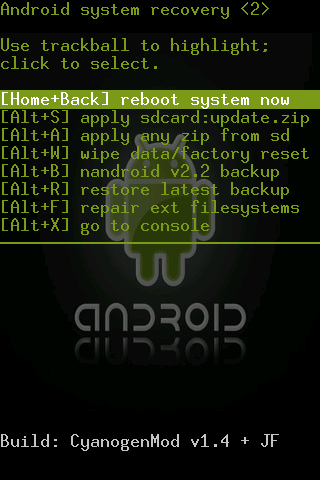
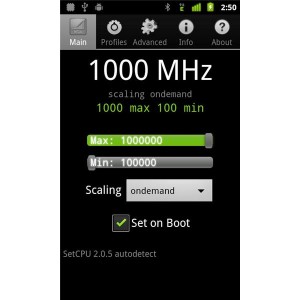
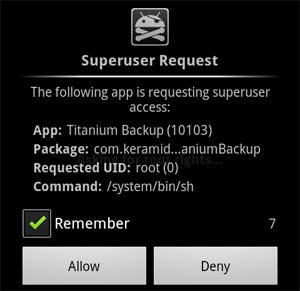
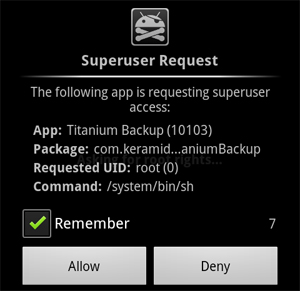
Enhanced AccessibilityNew APIs for accessibility services let you handle gestures and manage accessibility focus as the user moves through the on-screen elements and navigation buttons using accessibility gestures, accessories, and other input. The Talkback system and explore-by-touch are redesigned to use accessibility focus for easier use and offer a complete set of APIs for developers. Accessibility services can link their own tutorials into the Accessibility settings, to help users configure and use their services. Apps that use standard View components inherit support for the new accessibility features automatically, without any changes in their code. Apps that use custom Views can use new accessibility node APIs to indicate the parts of the View that are of interest to accessibility services. ROOT ANDROID 2.3.4 ROM Unlocking the Boot loader [IMPORTANT!] 1.Go to Settings page on your phone, scroll down to bottom of the screen and select “About phone”, now check your “Model number” and ”Build number”. And then choose an appropriate file for your version of phone from the link below:NOTE:The file given below is rooted system image for Android 2.3.4 [4.0.1.A.0.283] Global firmware, and it’s highly recommended to have the non-rooted version of the firmware installed on your phone before flashing the root image.So if you’re not already on an Android 2.3.4 [4.0.1.A.0.283] firmware, then follow the link below to upgrade your phone to the latest firmware using ‘Flashtool’: Complete guide on how to flash “.ftf” firmware files using Flashtool Below is the Android 2.3.4 [4.0.1.A.0.283] rooted system image: LT15i_4.0.1.A.0.283_Generic_Global_system.img 2.Download the following file, named “fastboot_with_Android_USB_file.rar”. 3.Switch OFF your phone. Wait until it vibrates to ensure that it has completely switched off. 4.Now extract the file you downloaded in Step 1.2. You’ll get two folders — “fastboot” and “usb-driver”. 5.Into the “fastboot” folder you need to cut/copy/paste the file you downloaded in Step 1 (See the video for reference). 6.Now pick up your phone (it must be Switched OFF) and hold the “Menu” key (the key at the bottom right side of your phone), now while holding the Menu key, connect your phone to your PC with an USB cable. 7.Once connected — the LED light near the phone’s USB plug will turn blue. If it doesn’t — repeat the Step 6. Open the “fastboot” folder that we extracted in Step 4. 8.Now hold Shift and press mouse right click (Shift + Mouse Right Click) anywhere on the empty white space inside the “fastboot” folder. And then select “Open command window here” from the context menu (See video for reference). 9.Type/Paste the following line in the command prompt window: fastboot flash system LT15i_4.0.1.A.0.283_Generic_Global_system.img And hit Enter. 10.Now wait for the process to complete. Command prompt will show a “Finished” message when it will be completed. 11.Once it’s done, disconnect the USB cable from your phone and Switch ON your phone. 12.Inside the app drawer check for “Superuser” app. You’re all good if it’s there, but if it’s not in the app drawer, then search for it in the Android Market as “Superuser” and install it. Now to ensure that your phone have root access, try some apps that require root access. tried “Titanium Backup” and it worked well. SCREENSHOTS:
|

Usage share of the different versions as of September 4, 2012. Most Android devices to date still run the older OS version 2.3.x Gingerbread that was released on December 6, 2010.
|
|||||||||||||||||||||||||||||||||||||